How to Create a Group Email in Gmail (2 Easy Ways)
Updated July 2026
Gmail has two built-in ways to email a group of people: contact labels (fastest, best for lists only you use) and Google Groups (a shared address anyone can send to). This guide walks through both, step by step, and explains the limits you’ll run into as your group grows.
Quick answer: open Google Contacts, select your people, apply a label, then type the label’s name into the “To” field of a new Gmail message.
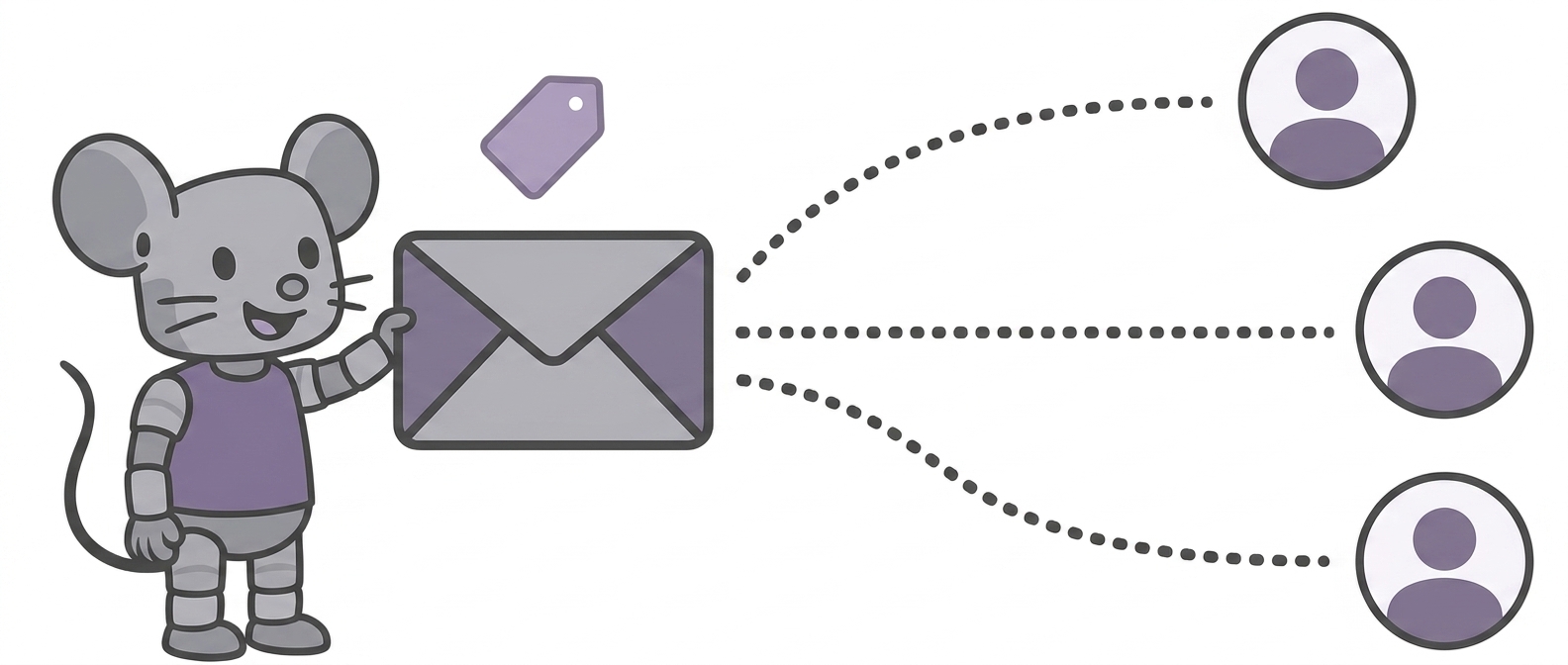
Method 1: Create an Email Group with a Contact Label
This is the fastest way to send one email to the same set of people again and again — a family list, a book club, a small project team.
- Open Google Contacts. Go to contacts.google.com or click the apps grid in Gmail and choose Contacts. (Gmail’s contact manager is a separate app, which is why you won’t find this inside Gmail’s settings.)
- Select the people you want in the group. Hover over each person’s avatar and tick the checkbox. If someone isn’t in your contacts yet, add them first with Create contact.
- Apply a label. With your contacts selected, click the label icon (Manage labels) at the top, choose Create label, give it a name like “Book Club”, and click Apply.
- Email the group from Gmail. Compose a new message and start typing the label name in the To field. Gmail suggests the label — select it and every member is added at once.
- Use BCC if members shouldn’t see each other’s addresses. Put your own address in “To” and the label in “BCC”. Recipients will see only your address.
That’s it — but note what you’ve actually created: a personal shortcut, not a true group address. The differences matter, and they’re covered below.
Method 2: Create a Google Group
A Google Group gives your group a shared address (like yourgroup@googlegroups.com) that anyone can send to — messages are distributed to all members, and replies can go back to the whole group.
- Go to groups.google.com and click Create group.
- Name your group and choose its email address and a short description.
- Set the privacy options: who can see the group, who can join, who can post, and who can read the conversation history.
- Add members. You can invite people by email or add them directly — though Google limits how many members you can add directly per day on personal accounts.
- Send a message to the group address and every member receives it.
Google Groups is closer to a real mailing list, but it brings its own friction: members need a Google account to read archives or manage their own subscription, the settings pages are famously confusing, and messages have a habit of landing in spam folders. (We wrote a full comparison of Google Groups and its alternatives.)
The Limits of Gmail’s Built-In Options
Both methods work for small, informal groups. Here’s where they break down:
- Contact labels are personal. Nobody else can use your label — if a teammate wants to email the same group, they must build and maintain their own copy.
- No self-service. People can’t join or leave on their own. Every change means you editing contacts by hand.
- Privacy is all-or-nothing. Everyone’s address is exposed unless you use BCC — and BCC kills group discussion, because nobody can reply-all.
- Sending limits. A free Gmail account can reach at most 500 recipients per day (Google Workspace accounts get 2,000). Hit the cap and Gmail simply blocks you for 24 hours.
- No shared history. New members can’t see anything sent before they joined, and there’s no archive to search.
The simpler way: a real mailing list
MailMouse gives your group one address — like bookclub@mailmouse.co — that reaches everyone. Members are just email addresses: any provider works, nobody needs a Google account, addresses stay private, and people can be added or removed in seconds.
Frequently Asked Questions
How do I send a group email in Gmail without showing all the addresses?
Put your own address in the “To” field and your contact label in “BCC”. Every recipient sees only your address. The trade-off: recipients can’t reply to the group, only to you. If you want private addresses and group replies, you need a proper mailing list, where members write to one list address and never see each other’s details.
How many people can I email at once in Gmail?
Free Gmail accounts can send to a combined maximum of 500 recipients per day; Google Workspace accounts get 2,000. For anything approaching those numbers, Gmail will also start tripping spam filters — dedicated list services exist precisely to handle this.
Can members reply to everyone in the group?
With a contact label, only if you left addresses visible in “To” or “CC” — which starts the classic reply-all chaos and exposes everyone’s address. With Google Groups or a mailing list service, replies go through the group address in an orderly way, and the list owner decides who may post.
What about creating an email group in Outlook?
The same concept exists in Outlook as “contact lists” and “distribution lists” — we cover every version in our guide to creating an email group in Outlook.